How to Keep Markdown Tables Intact When Converting to Word
Convert your Markdown tables now
Paste your Markdown below, or load the example to see what the fix looks like. Nothing is sent anywhere.
⌘ or Ctrl + Enter to download
0 words · nothing leaves this browser
Drop a .md file anywhere on this panel to load it.
Word preview
Your document appears here as you type. Headings, lists, tables and code render the way Word will show them.
If your Markdown table arrives in Word as lines of vertical bars and hyphens, the table was never parsed as a table. Either it was pasted as plain text rather than converted, or the source is missing its separator row. Both are quick to fix, and the result is a genuine Word table you can sort and restyle.
Tables are the single most common conversion complaint, and they are worth getting right because a real Word table behaves completely differently from text that resembles one.
What a valid Markdown table needs
A Markdown table has three required parts. Miss the middle one and the whole block is treated as ordinary paragraphs:
| Segment    | Revenue | Growth |
| ---------- | ------- | ------ |
| Enterprise | $2.4M   | +21%   |
| Mid-market | $1.1M   | +6%    |
The second line, the one made of hyphens, is the separator row. It is not decoration. It is the signal that tells a Markdown parser this block is a table rather than four lines of text that happen to contain pipe characters. Without it, every parser in existence treats the block as plain paragraphs, and you get punctuation in your Word document.
The pipes at the start and end of each row are optional in most parsers, but including them makes the structure obvious and avoids edge cases.
Why pasting fails and converting works
Pasting copies characters. Word receives pipes and hyphens and renders exactly that, because that is what it was given.
Converting parses the structure first. The converter recognises the table, works out that it has three columns and four rows, and builds an actual Word table object with cells. The Markdown to Word converter does this in your browser, and marks the first row as a header row so it repeats automatically if the table spans a page break.
That distinction matters more than it first appears.
What you gain from a real Word table
Sorting. Word can sort a real table by any column. Text that looks like a table cannot be sorted at all.
Restyling. Table styles apply instantly across every cell. Manual formatting has to be redone by hand each time.
Page breaks. A real table with a marked header row repeats that header on each new page. Text simply runs off the bottom.
Editing. Adding a row is one keystroke. In a text imitation of a table, you are aligning pipe characters by hand.
Accessibility. Screen readers announce a real table’s structure, telling the listener which column a value belongs to. A block of punctuation conveys nothing.
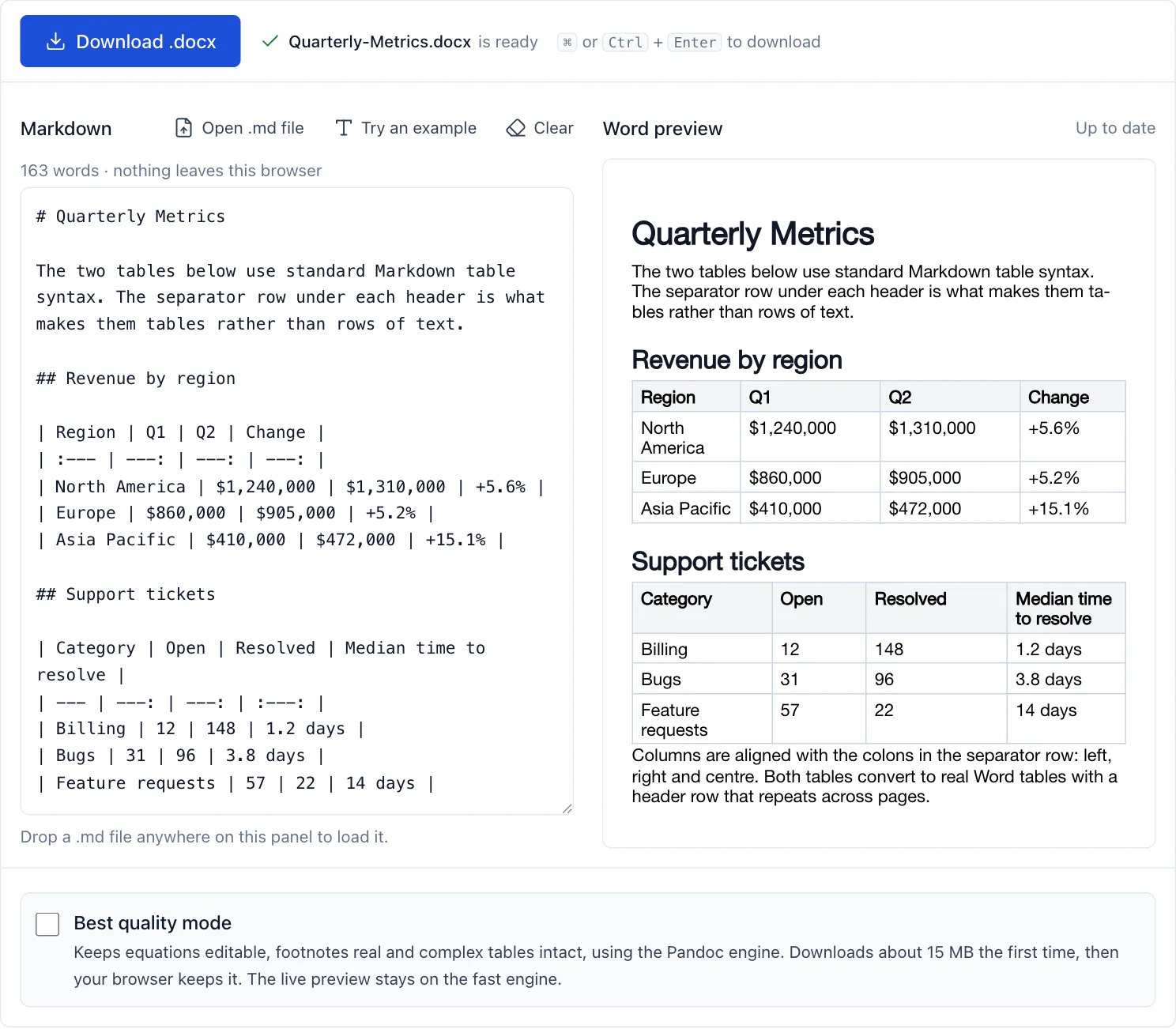
Both tables from the example, as source and as Word tables. The colons in each separator row set the column alignment you can see on the right.
Alignment
Markdown can set column alignment using colons in the separator row:
| Item      | Count | Price |
| :-------- | :---: | ----: |
| Widgets   |  120  | 12.50 |
A left colon aligns left, colons on both sides centre, and a right colon aligns right. Alignment is preserved through conversion, which is worth using for numeric columns since right-aligned numbers are considerably easier to compare.
What Markdown tables cannot do
Markdown tables are deliberately simple, and some Word table features have no equivalent:
- Merged cells. No cell can span two columns or two rows.
- Nested tables. A table cannot contain another table.
- Multiple header rows. Only the first row is a header.
- Cell shading and borders. These are styling decisions, applied in Word afterwards.
If a table depends on merged cells to make sense, convert it and then merge the cells in Word, or reconsider whether it would read better as a simple grid.
Tables from AI assistants
Assistants produce a lot of tables, and they are valid Markdown, which is good news. Two things to watch for.
First, copy the raw response rather than the rendered chat view. The rendered view has already turned the table into a visual thing, and copying it may flatten the structure.
Second, check that long tables were not truncated mid-row. A table missing its closing rows may still parse, producing a table with fewer rows than you expected.
Common problems
The table is one column. The separator row is missing, or the pipes are inconsistent between rows.
One row has too many columns. An unescaped pipe inside a cell is being read as a column divider. Escape it as \|.
The header is not repeating across pages. The converter did not mark the first row as a header row. A good converter does this automatically.
Cell contents run together. The cell contained multiple paragraphs, which Markdown tables cannot represent; they get joined.
Building tables that convert predictably
A few habits make tables convert cleanly every time.
Keep the pipes consistent. Include a leading and trailing pipe on every row. It is optional in most parsers but eliminates a whole class of edge cases, particularly when a cell is empty.
Do not try to align the source visually. Padding cells with spaces so the raw Markdown looks tidy in your editor has no effect on the output. It is harmless, but it wastes time and makes editing harder.
Escape pipes inside cells. A pipe character in your content is read as a column divider. Write it as \| and it stays text. This catches people out with file paths and regular expressions.
Keep cells short. Markdown table cells hold a single line of text. Anything long enough to want a paragraph break belongs outside the table, with the table pointing at it.
Put wide tables in landscape. A table with many columns will be cramped on a portrait page whatever the converter does. In Word, put the table in its own section and set that section to landscape.
If you are generating tables programmatically, a quick check that every row has the same number of pipes will catch nearly every malformed table before it reaches a converter.
Frequently asked questions
Can I convert a Word table back into Markdown? Yes, using the Word to Markdown converter. Merged cells are flattened, since Markdown has no way to express them.
How do I put a line break inside a cell?
Use <br> inside the cell. Pressing Enter ends the row.
Is there a column limit? Not technically, but wide tables become unreadable on a page. Beyond about eight columns, consider whether the table should be split or rotated to landscape.
Do formulas convert? No. Markdown tables hold text, not calculations. Add formulas in Word after converting, or keep the data in a spreadsheet.
After the conversion
A converted table is a real Word table, which means Word’s table tools all work on it. Two are worth knowing.
Table styles, under Table Design, restyle every cell at once, including banded rows and header emphasis. Applying one takes a click and makes a converted table look deliberately designed rather than merely present.
Repeat Header Rows, under Layout, ensures the header appears at the top of each page. A good converter sets this automatically from the Markdown header row, but it is worth confirming on a long table, because a table whose header appears only on page one is genuinely hard to read.