Markdown to Word Converter
Turn Markdown into a Word document anyone can open and edit. It is free, needs no signup, and runs entirely in your browser, so your file is never uploaded to a server.
Convert Markdown to Word Online
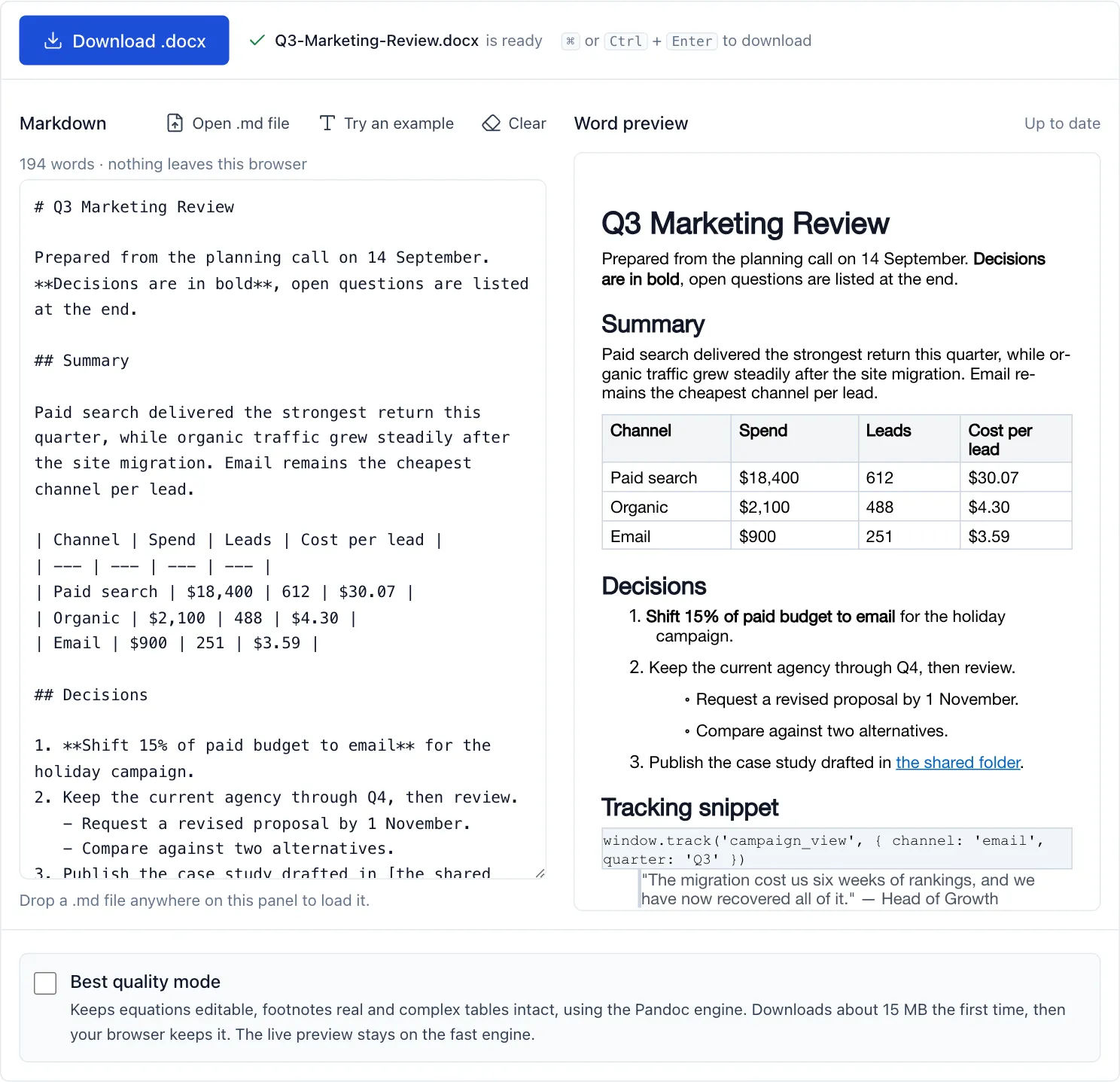
Paste your Markdown below and download a .docx file. Nothing is sent anywhere.
⌘ or Ctrl + Enter to download
0 words · nothing leaves this browser
Drop a .md file anywhere on this panel to load it.
Word preview
Your document appears here as you type. Headings, lists, tables and code render the way Word will show them.
Most converters make you either install command line software or paste your text into a site that uploads it somewhere you cannot see. This tool does neither. The conversion runs on your own machine in a couple of seconds, and produces a genuine .docx file with real Word headings, tables and lists rather than plain text wearing a Word extension.
How to Convert Markdown to Word in 3 Steps
The whole process takes a few seconds and needs no software installed. It happens in this page: you provide the text, your browser does the work, and the file lands in your downloads folder.
-
Paste or drop your Markdown
Paste your Markdown into the editor, or drag a .md file straight onto it. The text stays on your computer.
-
Check the warnings
The converter tells you if anything had to be simplified, such as LaTeX math or footnotes, so nothing is lost without you knowing.
-
Download your Word document
Click Convert to Word. The .docx file is generated in your browser and saved straight to your downloads folder.
What Does a Markdown to Word Conversion Preserve?
Whether you call it md to docx, markdown to docx or Markdown to Word, the output should be the same thing: a real Word document rather than plain text that happens to have a .docx extension. Many converters turn Markdown into HTML and rename the file, which looks acceptable until someone opens it in Word and tries to edit it. Headings are not really headings, so the navigation pane is empty and a table of contents cannot be generated. We built this converter to produce genuine Word structures instead, and the table below shows exactly what that covers.
| Markdown element | Preserved | Notes |
|---|---|---|
| Headings (levels 1-6) | Yes | Become real Word heading styles, so the navigation pane and table of contents work |
| Bold, italic, strikethrough | Yes | Applied as Word character formatting |
| Bulleted and numbered lists | Yes | Nesting is preserved to eight levels |
| Tables | Yes | Real Word tables with a repeating header row |
| Links | Yes | Clickable hyperlinks in the Word document |
| Inline code and code blocks | Yes | Monospace font with a light background |
| Blockquotes | Yes | Indented, including nested quotes |
| Images | Alt text | Reference and alt text kept; insert the file in Word |
| LaTeX math | Best quality mode | Fast mode keeps it as plain text and warns you |
| Footnotes | Best quality mode | Fast mode keeps the text inline and warns you |
| Mermaid diagrams | Best quality mode | Fast mode keeps the diagram source as a code block |
Real structure matters more than it first appears. When headings are genuine Word styles, the navigation pane works, a table of contents can be generated automatically, and your organisation's template applies cleanly. When lists are genuine Word lists, numbering continues correctly after you insert a new item. When tables are genuine Word tables, you can sort them, restyle them, and let them break across pages with the header repeating. None of that works if the converter only made the text look approximately right, which is the difference between a document you can work with and one you have to rebuild.
Of the eleven Markdown elements in that table, eight become native Word structures in fast mode, images keep their alt text, and three need best quality mode. The three rows marked best quality mode are worth explaining honestly. The fast converter handles the Markdown that most documents actually use. For LaTeX math, footnotes and Mermaid diagrams it will tell you it had to simplify something rather than quietly producing a document that is subtly wrong. Nothing is ever dropped without a warning.
Why Convert Markdown to Word?
Markdown is excellent for writing and terrible for sharing with people who have never heard of it. Word remains the format most organisations expect, which is why converting Markdown to Word is such a common last step. The pattern repeats across very different kinds of work, and it is almost always the same story: the writing happened somewhere comfortable, and the delivery has to happen somewhere standard.
Sharing with people who do not use Markdown
Sending someone a .md file usually means sending them a problem. They open it in Notepad, see hashes and asterisks scattered through the text, and ask what happened to the formatting. A Word document opens correctly for everyone, on every operating system, with no explanation attached.
Meeting submission requirements
Universities, journals, grant bodies and legal teams frequently require .docx submissions and reject anything else. If you drafted in Markdown because it kept you focused on the writing, converting Markdown to Word at the end lets you keep that workflow without breaking the rules.
Corporate templates and branding
Because the converter produces real Word heading styles, you can apply your organisation's template afterwards and the document will pick up the right fonts, colours and spacing automatically. That only works when headings are genuine styles rather than text that has been made large and bold.
Track changes and comments
Review still happens in Word. Track changes, margin comments and the accept or reject workflow have no real equivalent in a plain text file, so any document that needs review from colleagues eventually has to become a Word document.
Markdown to Word for AI Output
The most common reason for this conversion today did not exist a few years ago: someone asked an AI assistant to write something, and the answer came back in Markdown. Anyone who drafts with an assistant and then has to hand the result to a colleague runs into this within a week.
Why AI assistants reply in Markdown
ChatGPT, Claude, Gemini and Copilot all format their answers in Markdown. It is compact, unambiguous, and renders cleanly in a chat window. The chat interface displays it as neat headings and bullet points, so most people never see the underlying characters at all.
What breaks when you paste AI output into Word
Copying that answer and pasting it into Word often pastes the raw Markdown. Suddenly the document is full of double hashes where headings should be, pairs of asterisks around words that should be bold, and pipe characters where a table should be. Fixing it by hand means deleting formatting characters line by line. Converting the Markdown to Word instead does the whole job in one step and produces a properly structured document.
Keeping tables and code from AI responses
Tables suffer worst. An assistant that produces a tidy comparison table in chat is emitting rows of pipe characters, and pasting those into Word gives you lines of punctuation rather than a table you can sort or restyle. A proper Markdown to Word conversion turns them into real Word tables with a header row that repeats across pages, which is what this converter does. Code blocks are handled the same way, keeping their monospace formatting instead of being reflowed into ordinary prose.
Best Quality Mode: Pandoc in Your Browser
Pandoc is the document converter academics and publishers have relied on for years. It is normally a command line program you install, and it is the reason a great many technical books exist in more than one format. Recent versions can be compiled to WebAssembly, which means the whole Pandoc engine can run inside a web browser.
What Pandoc adds
Best quality mode converts LaTeX math into native Word equation objects you can click and edit, turns Markdown footnotes into real Word footnotes that renumber themselves, and handles complex tables that the fast converter simplifies. For a thesis, a paper or a technical specification, that difference matters. It is the same engine publishers use, doing Markdown to Word conversion at a level of accuracy that browser libraries cannot reach on their own.
The trade-off
Running Pandoc in the browser means downloading it, and it is roughly 15 MB compressed. That is a one-time download your browser then caches, but it is a real cost on a slow connection or a limited data plan. This is why best quality mode is something you switch on deliberately rather than a tax every visitor pays. The fast converter stays the default, and it never loads Pandoc unless you ask for it.
Which Markdown Syntax Converts to Word?
Markdown to Word conversion here covers standard Markdown plus the GitHub Flavored Markdown extensions most people actually use, notably tables and strikethrough. If you are not sure what a piece of syntax does, this table shows what you write, what it means, and what you end up with in the Word document.
| You write | It renders as | In Word you get |
|---|---|---|
| # Heading | Heading 1 | Word "Heading 1" style |
| ## Heading | Heading 2 | Word "Heading 2" style |
| **text** | Bold text | Bold run |
| *text* | Italic text | Italic run |
| ~~text~~ | Struck text | Strikethrough run |
| - item | Bullet point | Bulleted list |
| 1. item | Numbered point | Numbered list |
| [text](url) | Link | Clickable hyperlink |
| `code` | Inline code | Monospace run |
| ```block``` | Code block | Shaded monospace paragraph |
| > quote | Blockquote | Indented paragraph |
| | a | b | | Table | Word table with header row |
Common Markdown to Word Problems and How to Fix Them
Most complaints trace back to three specific failures, and all three come from converters that treat the job as a text substitution rather than as building a document. They are the three we see most often in documents people send us, and knowing which one you have hit usually tells you how to fix it.
Headings that are not really headings
This is the most common and least visible problem. The document looks right, because the heading text is large and bold, but Word does not know it is a heading. The navigation pane stays empty, an automatic table of contents comes back blank, and applying a company template does nothing. The fix is to use a converter that assigns real Word heading styles. You can check in seconds: open the document, turn on the navigation pane, and see whether your headings are listed.
Tables that arrive as rows of pipe characters
If your table appears as lines of vertical bars and hyphens, the Markdown was never parsed as a table at all. Usually the source table is missing its separator row, the line of hyphens directly beneath the header, which is what tells a Markdown parser that the block is a table rather than ordinary text. Add it and convert again, and you get a real Word table with sortable columns and a header that repeats across page breaks.
Code that loses its formatting
Code needs a monospace font to stay readable, and Word will happily reflow it into ordinary prose if the converter does not mark it up properly. The usual cause is an unclosed code fence: three backticks opening a block with no matching three backticks closing it. Everything after that point is treated as code, or nothing is. Check that your fences come in pairs before converting Markdown to Word.
Guides and Troubleshooting
Longer walkthroughs for the Markdown to Word situations that need more than a paragraph.
- How to convert ChatGPT output to a Word document — why AI answers paste badly, and the three ways to fix it.
- Keeping Markdown tables intact — the separator row that decides whether you get a table or punctuation.
- Why formatting disappears — the five causes, and how to tell which one you have hit.
- LaTeX maths into Word equations — getting editable equation objects instead of literal dollar signs.
- All guides
Frequently Asked Questions
Is this Markdown to Word converter free?
Yes, completely. There is no signup, no account, no watermark on the output, and no limit on how many documents you convert. The tool is free because it costs us almost nothing to run: the conversion happens on your computer, not on a server we pay for.
Are my files uploaded to a server?
No. Your Markdown never leaves your browser. The conversion runs in JavaScript on your own machine, and the resulting Word file is generated locally and saved straight to your downloads folder. You can verify this by opening your browser developer tools, switching to the Network tab, and converting a document — you will see no upload.
Does it work offline?
Once the page has loaded, yes. Markdown to Word conversion needs no network connection at all, because everything required to build the document is already running in your browser.
Will my tables survive the conversion?
Yes. Standard Markdown tables become real Word tables with proper rows, columns and a repeating header row, so they keep working if the table breaks across pages. Column alignment is preserved. Cells that span multiple columns are flattened in the fast mode, because that syntax is an extension rather than standard Markdown.
What happens to images in my Markdown?
Image references are preserved with their alt text. Because the converter runs entirely in your browser and never contacts a server, it cannot fetch remote images on your behalf. For documents where images matter, keep the image files alongside the document and insert them in Word after converting.
Can I convert a Word document back to Markdown?
Yes. Use our Word to Markdown converter, which reads a .docx file and produces clean Markdown. It maps Word heading styles to Markdown headings rather than copying visual formatting, so the output stays tidy instead of full of stray bold text.
Does it handle LaTeX math equations?
The fast mode keeps LaTeX math as plain text and tells you it has done so. Best quality mode converts it into native Word equation objects that you can click and edit inside Word, which is what you want for academic or technical documents.
Is there a file size limit?
The converter accepts Markdown documents up to 10 MB, which is far larger than any realistic text document — a 10,000 word document is roughly 60 KB. Very large documents take slightly longer to convert because all the work happens on your machine.
Which versions of Word does the output work with?
The converter produces a standard .docx file, the format Microsoft Word has used since 2007. It opens in Word for Windows and Mac, Word Online, Google Docs, LibreOffice Writer, Apple Pages and anything else that reads .docx.
Does the Markdown to Word converter work on mobile?
Yes. The tool works in mobile browsers on both iOS and Android, and the converted file is saved to your device the same way any other download is. Pasting long documents is easier on a desktop, but nothing is blocked on mobile.
What exactly is Markdown?
Markdown is a way of writing formatted text using plain characters. You write a hash for a heading, asterisks around text for bold, and hyphens for bullet points. It is popular because the raw text stays readable, and because it is the format most AI assistants use when they reply to you.
Why does my formatting look wrong after converting?
The most common cause is Markdown that is not quite valid — a table missing its separator row, or a code fence that was never closed. Check the warnings shown after conversion, since they name anything the converter had to simplify. If a specific document still converts incorrectly, best quality mode handles complex structures the fast mode simplifies.
Convert Your Markdown to Word Now
Paste your Markdown into the converter at the top of this page and download a Word document in a couple of seconds. If you need to go the other way, the Word to Markdown converter turns a .docx file back into clean Markdown.
There is nothing to install and nothing to sign up for. Every Markdown to Word conversion happens on your own computer, which is why the tool is free and why your documents stay private. Confidential drafts, client work and unpublished research can all be converted without any of it being sent to a server.